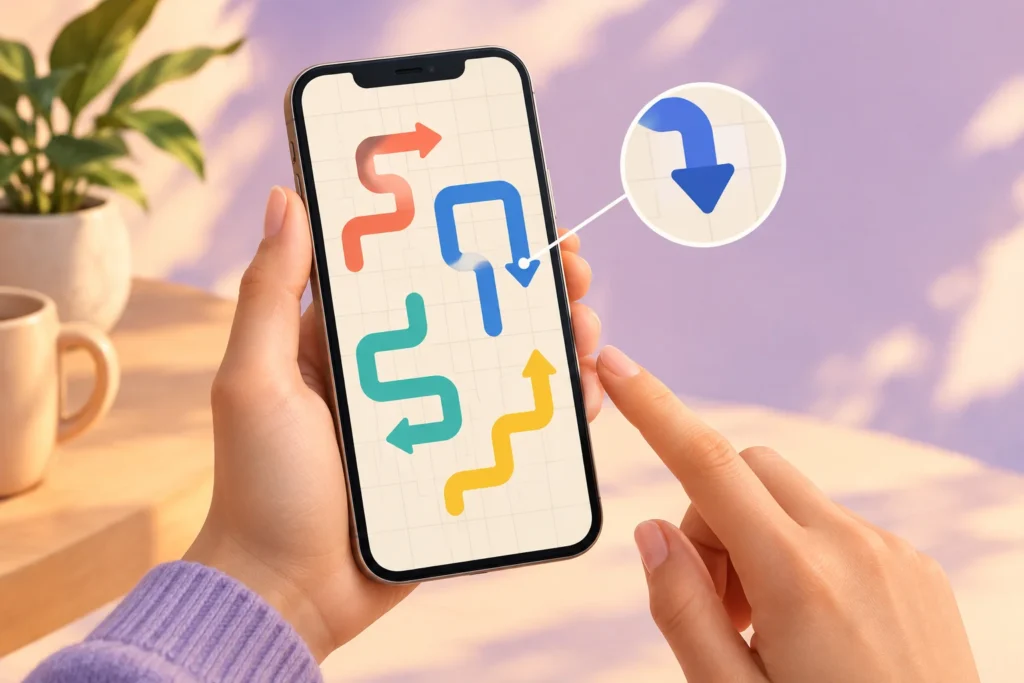
Browser puzzle games are handy when you want to play on your phone without installing an app. Open a page, choose a puzzle, and you’re ready to begin. But a smaller screen can make closely packed arrows and paths harder to see—and a crowded board is easier to tap by mistake.
A few adjustments to your view and touch habits can make mobile play more comfortable, whether you’re trying Amaze Go for the first time or returning to a difficult level.
Playing Puzzle Games in a Mobile Browser
To start playing Amaze Go on a phone, open your mobile browser and visit the Amaze Go homepage. Choose a level using the selector and wait for the board to load. The browser game doesn’t require a mobile app download.
Once the board appears, find an arrow with a clear path and tap it. Keep clearing arrows until the board is empty. If you’d like to review the controls first, the How to Play guide explains the basics, and the Where to Play page links to more game resources.
Other browser puzzle games may work differently. Check each game’s instructions for its controls and any requirements before you begin.
Understanding Touch Controls
On a phone, your finger covers more of the screen than a mouse pointer would. When two arrows sit close together, take a moment to identify the piece you want before tapping it.
For example, if two winding lines meet near the center of the screen, follow the one you want to its arrowhead. Check the direction it points and trace its path toward the edge. Then tap the intended piece once. In Amaze Go, a blocked selection costs a chance, so an accurate, deliberate tap matters.
If you’re unsure which way a piece will move, the beginner’s guide to reading arrow directions explains how to find and follow the arrowhead.
Viewing Small Puzzle Pieces Clearly
On a smaller display, a line crossing an arrow’s path can be easy to miss. Look beyond the space immediately in front of the arrowhead: another piece may block the route farther along.
If a section is difficult to distinguish, use the game’s plus control to zoom in. Then switch to Pan mode and drag the board to inspect another area. For example, you can follow a right-pointing arrow from its tip across the board and look for a crossing line before selecting it.
Zooming in can make one section clearer, but it may also put the rest of the board out of view. Zoom back out when you want to see how the pieces fit together. The guide to solving crowded arrow puzzle boards has more ideas for breaking a busy puzzle into manageable sections.
Using Zoom and Screen Space
Amaze Go has plus and minus controls for adjusting
Comments (1)